Money lives in Statements
Your payout position, weekly statements, and payout history open from the Statements card (Lesson 3); for now they open on your earlier portal page. Locked weekly statements remain the source of truth.
The complete guide is shown in English.
These cards match your MenuConnect dashboard. Pick the one you are working in to see its how-tos and videos.
New to MenuConnect? Start Owner Setup, a 15-minute tour of everything.
Learn the owner tasks that prevent delays during service and cut down on back-and-forth when you need help.
5 short stages · 18 lessons and a quick check · about 15 minutes
Progress is saved on this device so you can close the guide and continue later.
Opening a lesson marks it viewed; the quick check records an attempt, not a passing score or completed restaurant setup.
MenuConnect is your restaurant's online-ordering home base — money, menu, hours, and orders in one connected place. This comprehensive guide covers the owner workflows available today and when to ask Menu.ca for help. Practice controls never touch a real restaurant.
Use these shortcuts anytime. They do not replace the setup.
Payouts, statements, hours, and orders in a single place — no juggling systems.
After saving hours or menu changes, confirm the change on the customer storefront.
After an order is accepted, you refund it yourself from Orders. We handle full menu builds and your profile and account settings.
Your portal lives at your restaurant's own web address with /portal on the end. Enter the owner email Menu.ca set up for you and choose Email me a link, then open the newest link in the same browser you want to use. You can also use Continue with Google, or a password if you have set one. You land on your restaurant’s dashboard (Lesson 2).
Where: Your restaurant’s web address, with /portal on the end.
Do this: Request an emailed sign-in link using the owner email set up for you. Open the newest link within 15 minutes in the browser you want to use.
Check: Your restaurant dashboard opens. Confirm that the name at the top is the correct restaurant.
Check that you entered the configured owner email and check your spam folder. Use the newest link if you requested more than one. If you are unsure of the email or still cannot sign in, email restaurants@menu.ca.
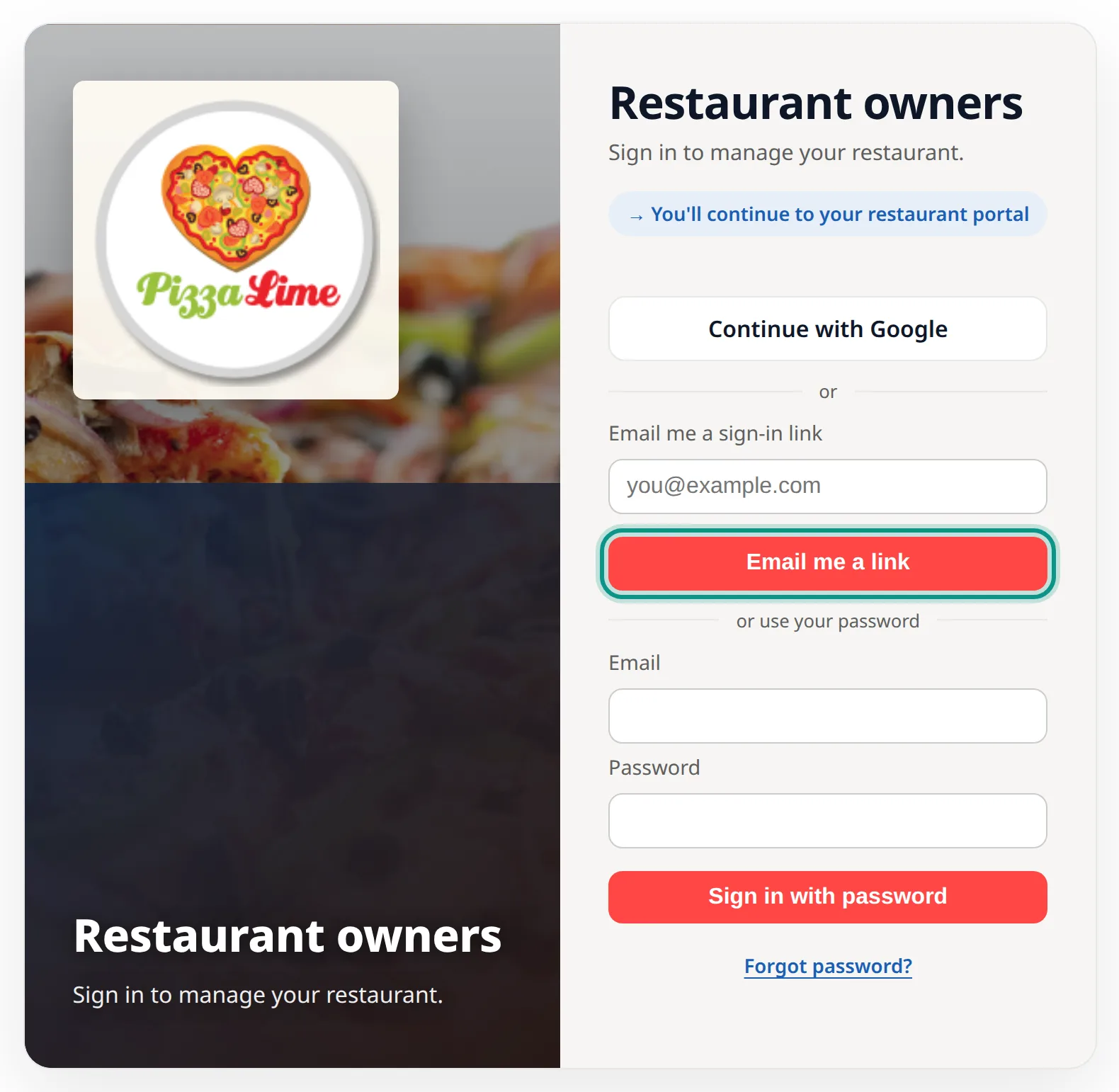
The link expires after 15 minutes and signs in the browser that opens it. Use it once and never forward it.
We sent a one-time sign-in link to your owner email. Open the newest link within 15 minutes in the browser you want to sign in.
Bookmark it on your phone — it's the fastest way in. Google and password options may also appear, but the emailed link avoids sharing or remembering a password. If you're not sure of your owner email, use Owner help.
After you sign in, or enter your Owner PIN on the kitchen tablet, you land on your restaurant’s dashboard. It has one card for each part of your restaurant — Insights, Statements, Hours, Menu, Photos, Look, Delivery zones, Promotions, Announcements, Orders, Customers, and Help. Tabs across the top open most of the same sections, and Overview brings you back to the dashboard. Statements has a card but no tab. Tap the numbered pins to explore.
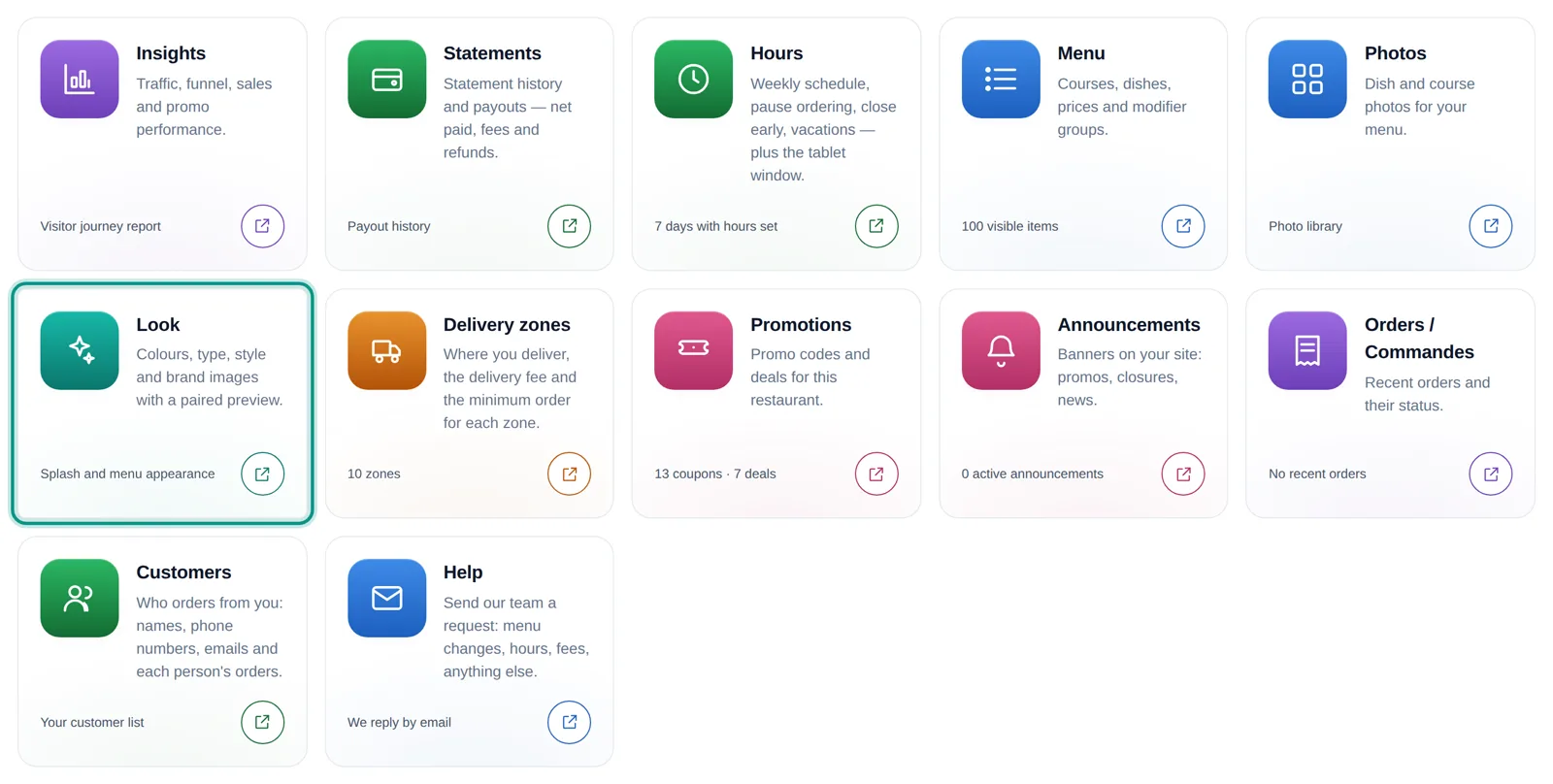
Traffic, funnel, sales, and promo performance
Payout history — net paid, fees, refunds
Weekly schedule, pause ordering, close early, vacations
Dishes, prices, availability, and the Featured section
Dish and section photos for your menu
Colours, style, and brand images for your website
Where you deliver, fees, and minimum orders
Create, pause, and restart deals and promo codes
Banners on your site: promos, closures, news
Recent orders and their status
Who orders from you and each person’s orders
Send our team a request
Tabs for most sections. Overview brings you back to this dashboard from anywhere; the other tabs open each section directly. Statements opens from its card.
Your payout position, weekly statements, and payout history open from the Statements card (Lesson 3); for now they open on your earlier portal page. Locked weekly statements remain the source of truth.
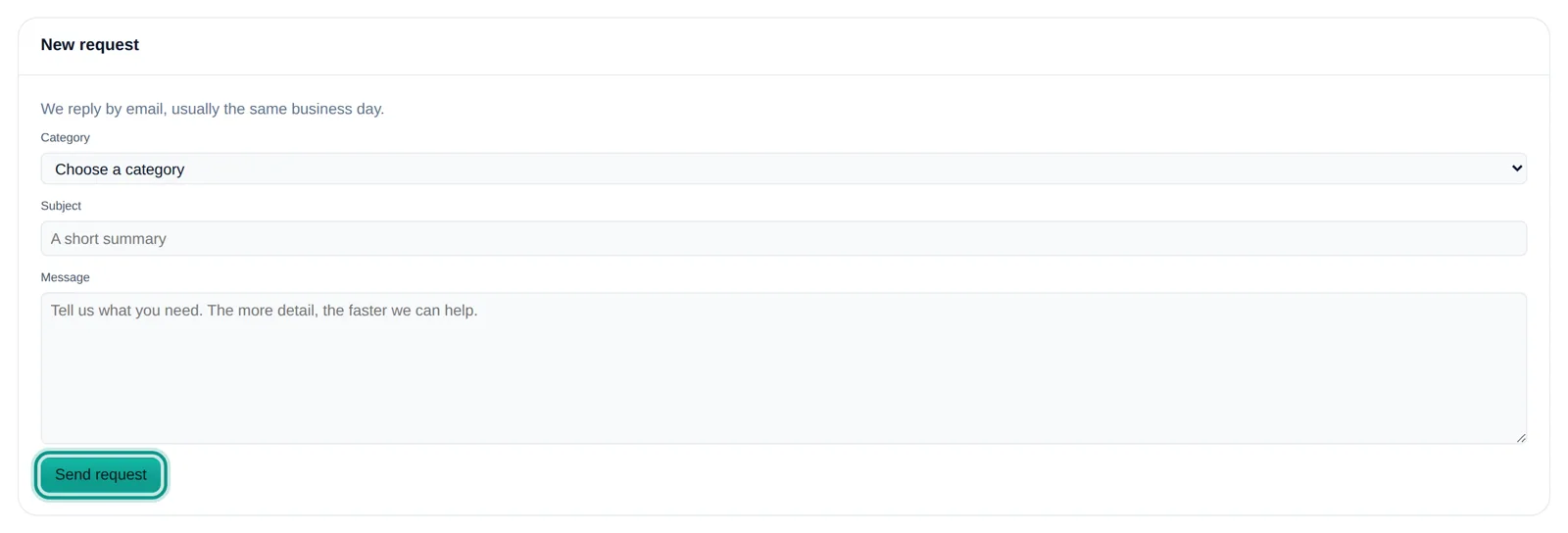
Help → Send a request opens a request with the Menu.ca team: choose a category, add a subject and the details. We reply by email, usually the same business day (Lesson 16).
The dashboard shows only your own restaurant. Profile and Settings stay with the Menu.ca team, so they do not appear here.
On Look, pick a Style and a Font pair and check the light and dark preview. Nothing changes on your website until you click Save look.
Every week gets a frozen statement that walks from gross sales down to a payout or carried balance, with every order listed underneath. Download CSV for analysis or PDF for your records.
Sample statement: all orders paid online by card. This simplified teaching example does not include restaurant-collected cash, taxes or commission credits; use your actual statement for reconciliation.
Weekly statement · Jul 13 – Jul 19 · 68 orders
If customers paid cash at the restaurant, that cash is not part of the funds Menu.ca holds to pay out. Held card funds may not cover commission and fees in a cash-heavy week, so a balance can carry forward. Check the real statement and ask Owner help if it does not reconcile.
A busy week does not always equal the same-size bank deposit. Your statement combines orders paid online with orders paid directly to the restaurant, then applies the charges in your agreement.
Where: Dashboard → Statements.
Do this: Open the relevant weekly statement. Compare cash and card sales, deductions, refunds, commission credits, and net payout. Cash collected at your restaurant is not money Menu.ca is holding to pay out.
Check: Match unfamiliar amounts to the orders listed beneath the statement.
Record the statement period, order number, and amount you are asking about. Send those details through Owner help. Past statements stay frozen; do not manually adjust them.
Cash collected at the restaurant is part of sales, but it is not money Menu.ca is holding to pay out.
Card processing fees apply to card orders. The remaining held funds contribute to the net payout.
A later refund appears in the statement period when it is processed rather than rewriting an older statement.
If held card funds do not cover commission and fees, the remaining balance can carry forward. That is not automatically a missing payment.
Set the weekly schedule customers order against. One window per day — or add a second for a split shift. Save, then confirm the change on the customer storefront; if it has not appeared, use Owner help.
Where: Hours → Pickup and delivery hours.
Do this: Choose the day, edit the opening and closing times, then save. Use two windows for a lunch-and-dinner split.
Check: Open the customer storefront and check the day and both service windows.
Confirm the day, 24-hour times, and any dated closure that overrides the weekly schedule. The tablet ordering window is view-only on this page; use Owner help if it is wrong.
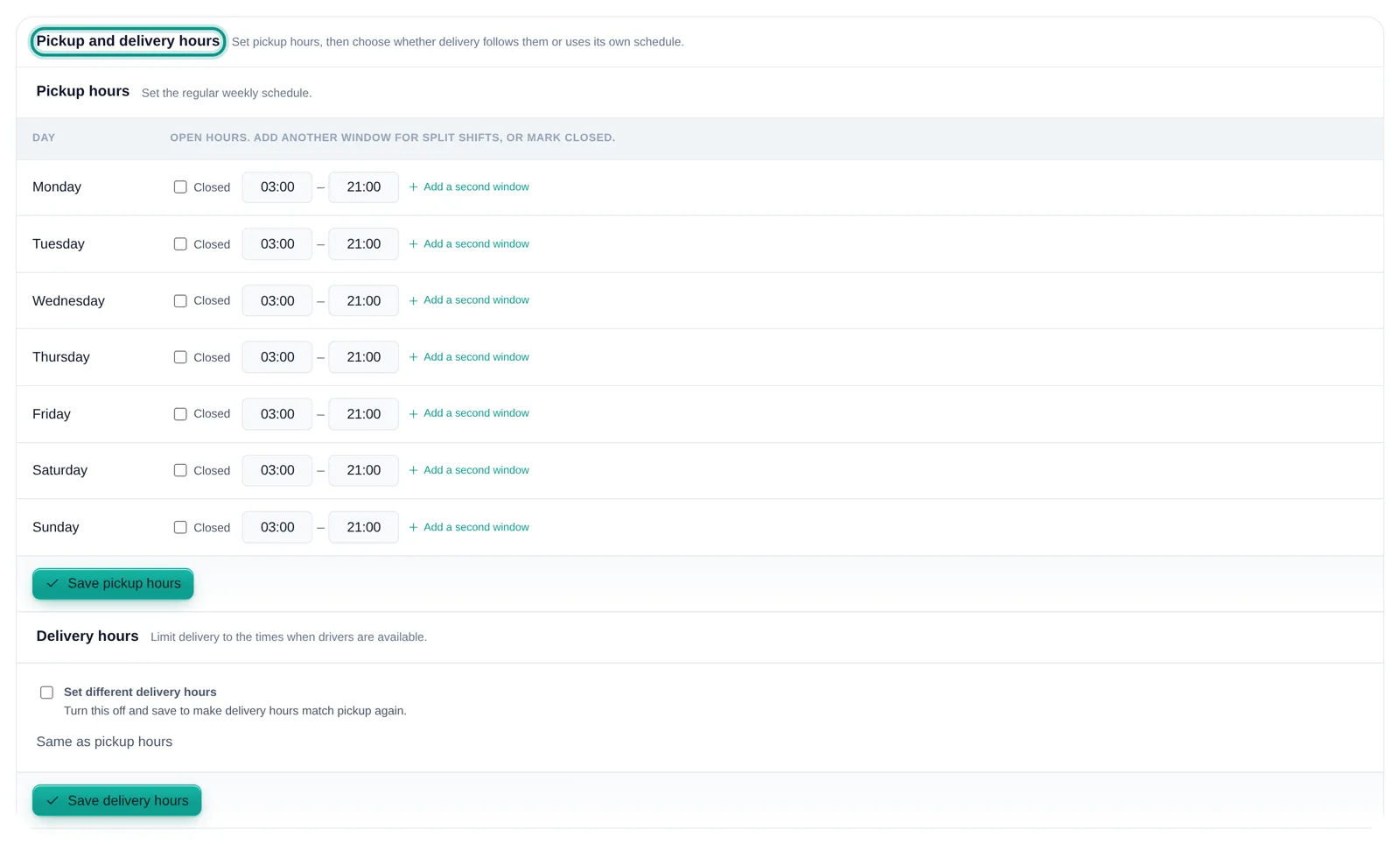
Weekly schedule
Times are 24-hour (e.g. 09:00, 22:00). Toggle a day to Closed when you don't take orders.
💡 A split shift — like lunch 11:00–14:30 and dinner 17:00–21:00 — is just two windows on the same day. Use + Add a window.
The Hours & availability page also shows the in-store tablet's ordering window. It usually matches your open hours, but it is currently view-only there. Use Owner help if it is wrong.
If you close between lunch and dinner, use two windows on the same day instead of one continuous opening. Customers can order only inside the windows you save.
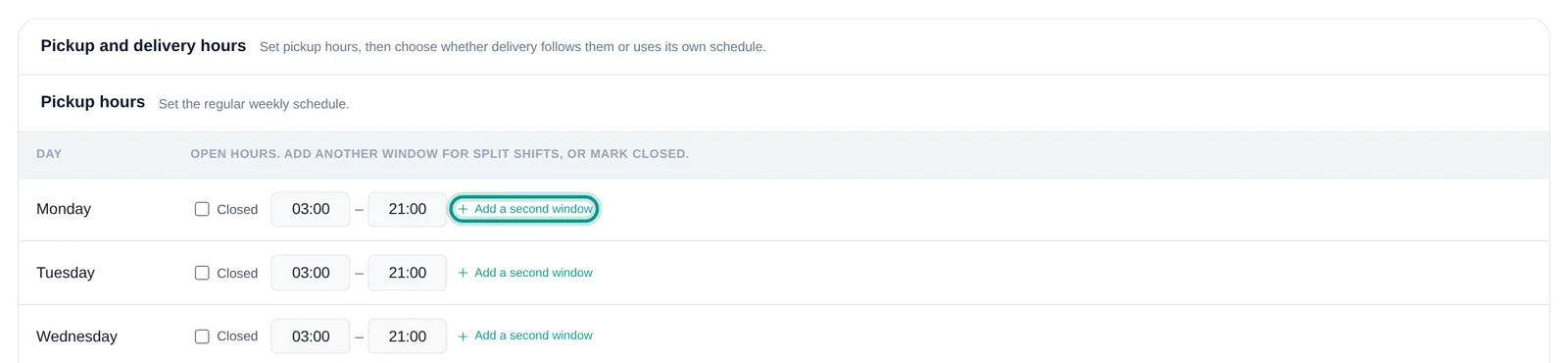
Friday
Use weekly hours for every Friday. Use a dated exception in Lesson 7 for one unusual Friday.
Closing for a holiday, or shutting early one specific night? Dated closures sit on top of your normal week — they override it for those days, then disappear after they pass. Your weekly schedule is never touched.
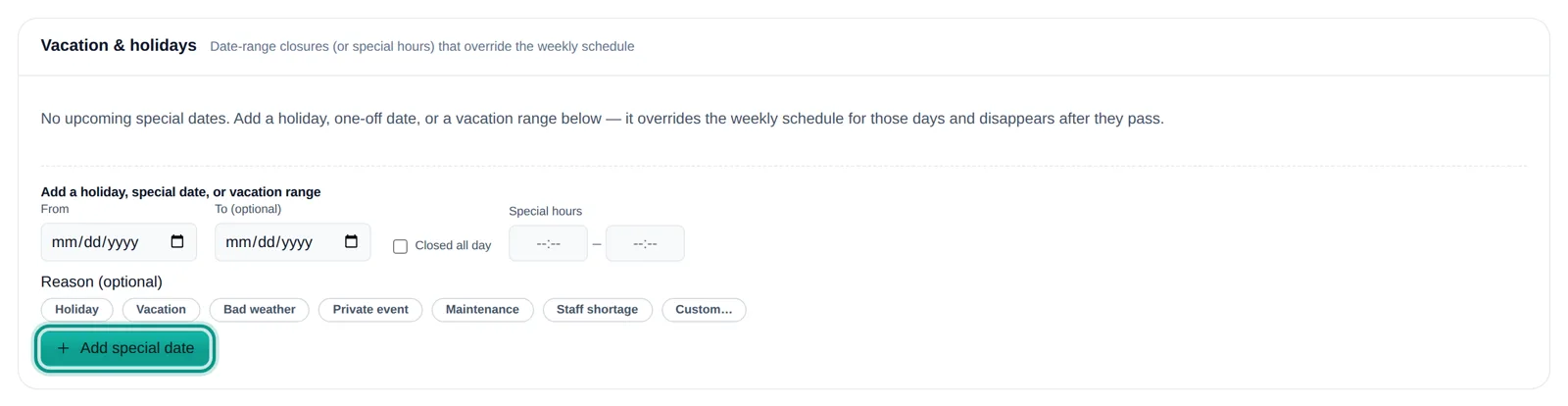
It always shows you the change first — nothing happens until you hit Apply.
One tap marks today closed for the rest of the day. It overrides the schedule for today only, without touching it permanently. Add a reason if you like — Holiday, Vacation, Bad weather, Private event, Maintenance, Staff shortage, or Custom…
A flood, power outage, equipment failure, or staff shortage needs a same-day action, not a permanent rewrite of your weekly schedule.
Where: Hours → Close early tonight → Close for the rest of today.
Do this: Apply a same-day closure. Keep your recurring weekly schedule for normal operating hours.
Check: Open the customer storefront and confirm the restaurant is unavailable. Reopen only when you can fulfil new orders.
Closing today is for stopping new orders. Look up existing orders separately. After acceptance, open the order in Orders (Lesson 12) and refund it there.

The video in Lesson 7 shows Close early tonight, step by step.
Use the same-day closure control when the restaurant cannot take more orders today.
Remove the same-day closure only after the kitchen and ordering setup are genuinely ready.
A same-day closure should not replace your regular weekly schedule.
Use dated exceptions for a planned date and weekly hours for a permanent schedule change.
Edit your menu directly. Search dishes, edit an existing dish's name, description, and price, hide or restore it, star dishes for your Featured section, and manage photos. You can also add sections and dishes, and build choices such as a protein or size. You can also edit the choices inside a deal; setting up a brand-new deal still goes through Owner help.
Where: Menu → Find the dish.
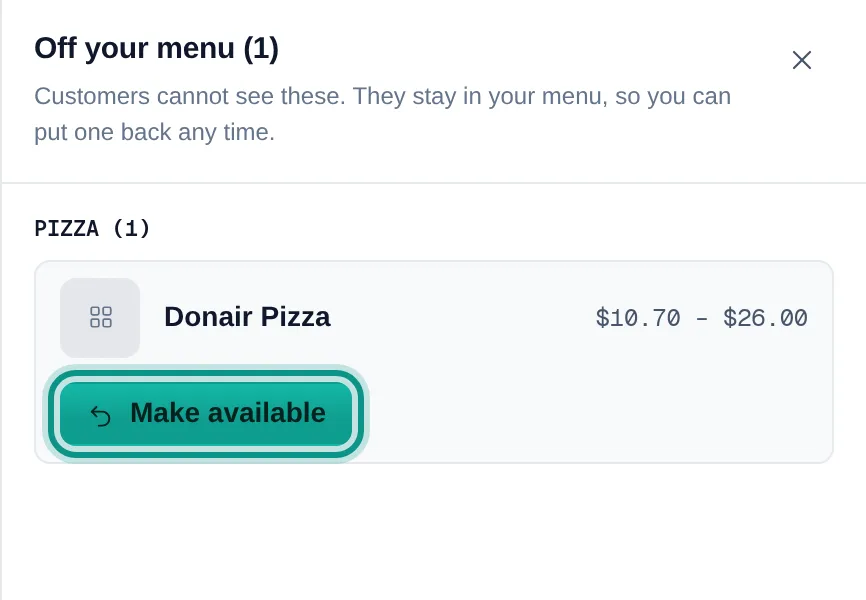
Do this: Click 86 (hide) beside the dish. When the kitchen can sell it again, open Off your menu and click Make available.
Check: Check the customer menu to confirm the dish cannot be ordered.
A dish you hide leaves your dish list. Open Off your menu, beside the dish search box, to see it. Confirm the exact dish before you click Make available. Use Owner help if the item, size, modifier, or category is wrong.
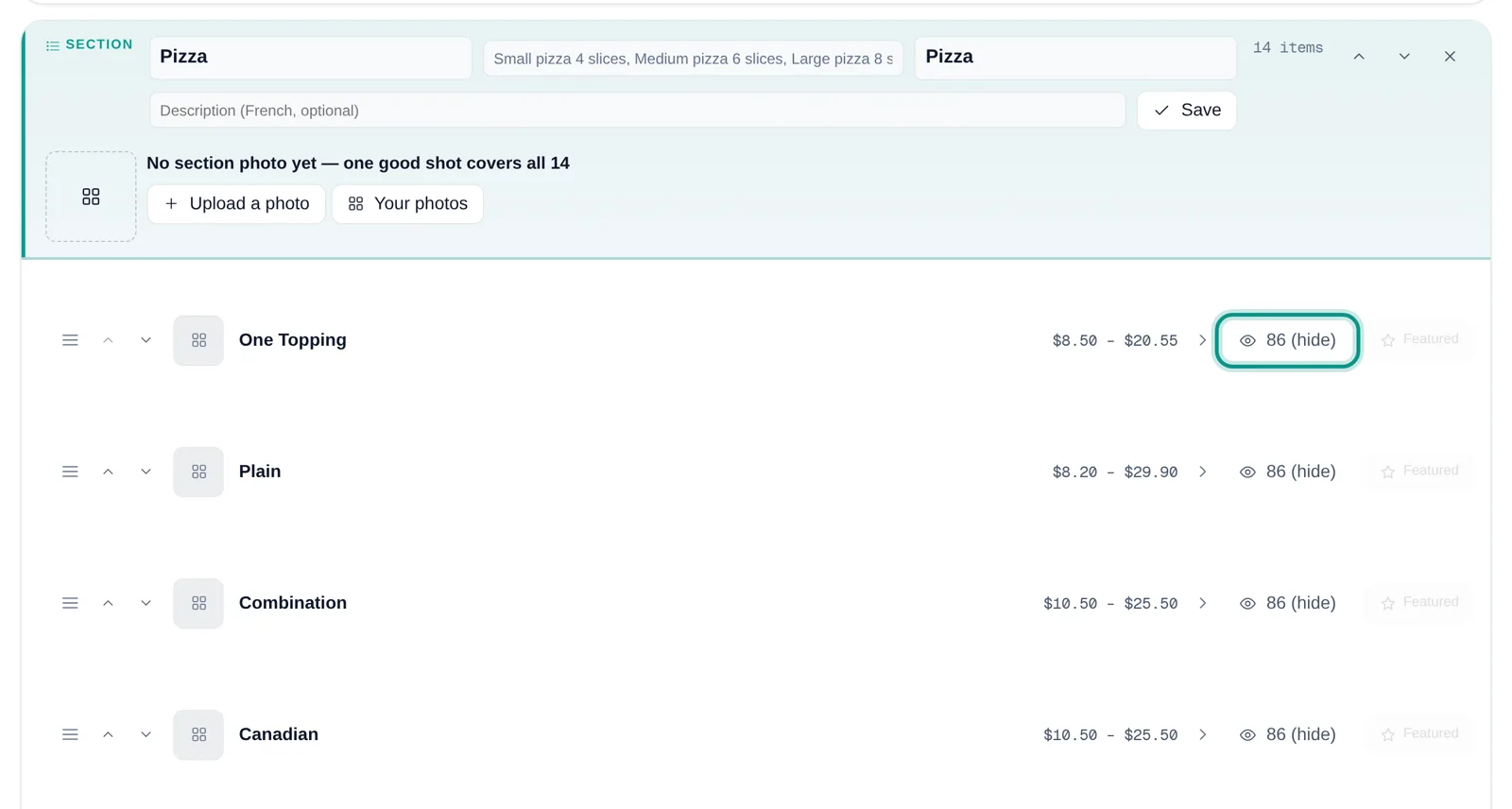
💡 These practice controls match what owners can use today. In the real portal, save the change, then check the customer menu.
Choose a dish photo from your phone or computer.
When your restaurant has bilingual menus enabled, the language fields let you keep both customer menus complete. A restaurant configured as English-only shows only English fields.
One photo can represent a whole menu section. This gives customers a useful visual without requiring a photo of every dish.
Use plain language for a price, sold-out, restore, or feature request. Review the preview, then Apply only when it is correct.
Search by dish name. A dish you hide waits in Off your menu, beside the search box, until you click Make available.
Starring a dish adds it to the end of the Featured section at the top of your dish list. There you can rename the section in English and French (leave a box empty for “Featured” / “En vedette”), add an optional section photo shown above the Featured row on your website, and put the starred dishes in order with the up and down arrows. Unstarring a dish takes it out of Featured; it stays on your menu.
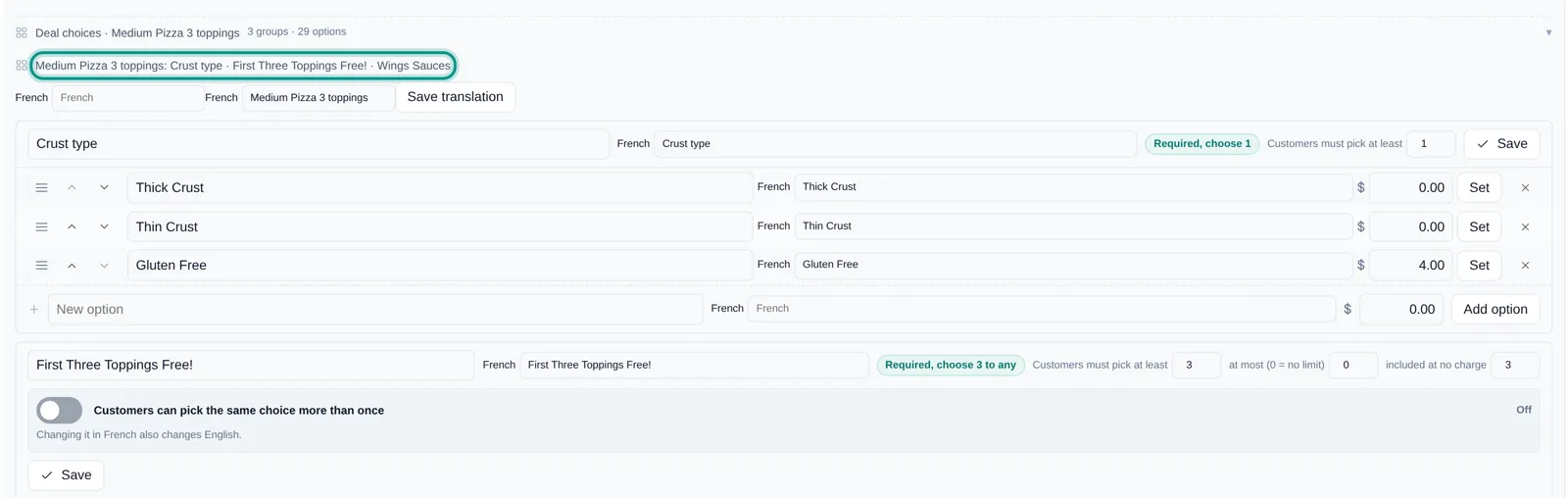
Availability is the fastest menu control during service. It protects customers from ordering something the kitchen cannot make while preserving the item for later.
Confirm that yesterday's sold-out items are still unavailable only when stock is actually missing.
As soon as a dish becomes unavailable, click 86 (hide) and verify the customer menu.
Turn it back on only after ingredients and kitchen capacity are ready.
Photos are optional. Upload JPG, PNG, or WebP files up to 10 MB; the portal sizes and tidies them. Language fields follow the languages enabled for your restaurant.

Confirm the correct dish or section, review every enabled language, and verify the customer menu after publishing. Menu commands show a preview first, and nothing changes until you press Apply.
Choose a file from your phone or computer, upload it, or open Your photos to reuse an existing image.
Upload a JPG, PNG, or WebP up to 10 MB, then confirm it is attached to the correct dish.
Menu → the section → Upload a photo, then Use this photo. One good photo represents the whole section; choose Banner, Standard, or Poster layout and set its focus.
Edit approved names and descriptions in every language enabled for the restaurant, then review each customer menu.
"Where's my order?" Search recent orders by number, customer name, or phone. The live table shows total, captured amount, refunded amount, status, and placement time. Before acceptance, the restaurant can reject or cancel the order on its tablet. After acceptance, you refund a card order yourself from its Refund card.
Where: Orders.
Do this: Search by order number, customer name, or part of their phone number. Open the matching order.
Check: Confirm the customer, placement time, status, total, captured amount, and refunded amount.
Try another identifier and check that the list says Live · Up to date. If unresolved, send the available details through Owner help. Before acceptance, reject or cancel on the restaurant tablet. After acceptance, refund it yourself from the order’s Refund card. Do not promise a refund until the card shows Refunded.
Where: Orders → open the order → Refund card.
Do this: Click Refund. Choose Whole order, Pick dishes, or Type amount, pick a reason, add a note if you like, then click Review refund and Confirm refund.
Check: The card shows Refunded, or tells you what happens next.
Reject or cancel an incoming order on the restaurant tablet before accepting it. Once accepted, refund it yourself here.
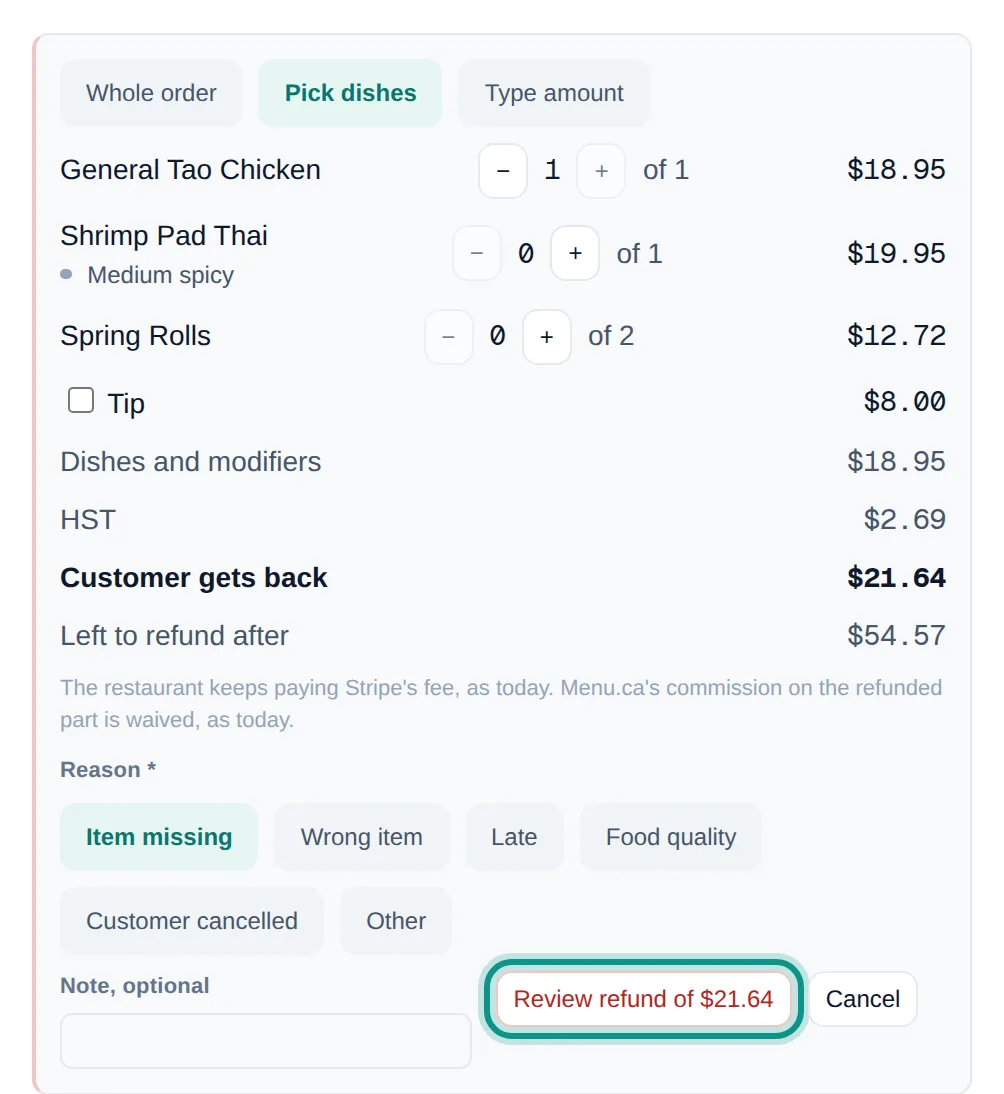
The customer is sent a refund email. Banks usually show the money back in 5 to 10 business days.
The card company has it and is finishing up. The order updates by itself.
The order updates by itself. Menu.ca follows up if there is no answer within an hour.
Check the amount, then click Try again.
“Live · Up to date” confirms the recent-order list is current. Sound alerts are optional.
Total, captured, and refunded amounts can differ. The status and refund result on the order show what happened.
Order number is best. Customer name or part of the phone number also works.
On the order and the kitchen ticket, each discount has its own line with its name. Subtotal is the food total before discounts, so Subtotal minus the discounts, plus delivery, tip, and tax, equals the Total. Orders placed before October 5, 2026 show a single Discount line.
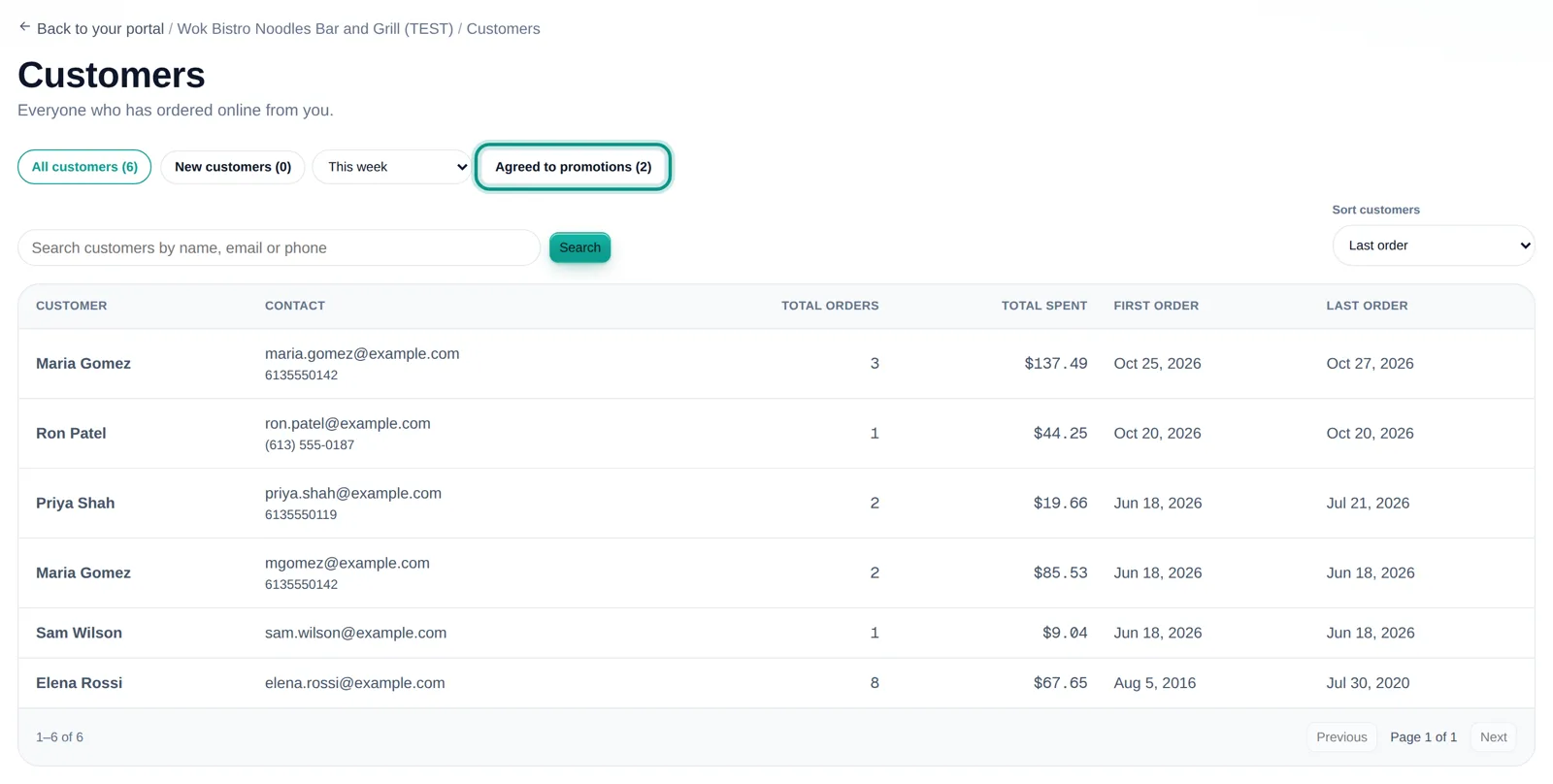
The Customers card on your dashboard lists everyone who has ordered online from you, with how to reach them, how many orders they’ve placed, what they’ve spent, and when they first and last ordered.
Open the Promotions card on your dashboard. New promotion walks you through a deal one question at a time, and a preview shows what customers will see before you start it. Every promotion in your list can be edited, paused, or restarted, and shows how many orders used it.
Where: Dashboard → Promotions → New promotion.
Do this: Answer each step: what the deal is, what it covers, how much, when it runs, and how customers get it. Check the names customers see in French and English, then choose Start promotion.
Check: The promotion shows Running in your list. Use Check it in your cart to see it on your storefront.
Find the promotion in your list. Make sure it is Running, not Paused or Ended, and that the order matches its days, dates, order type, and minimum. A code set to once per customer works only once for each customer. Use Check it in your cart to test it yourself.
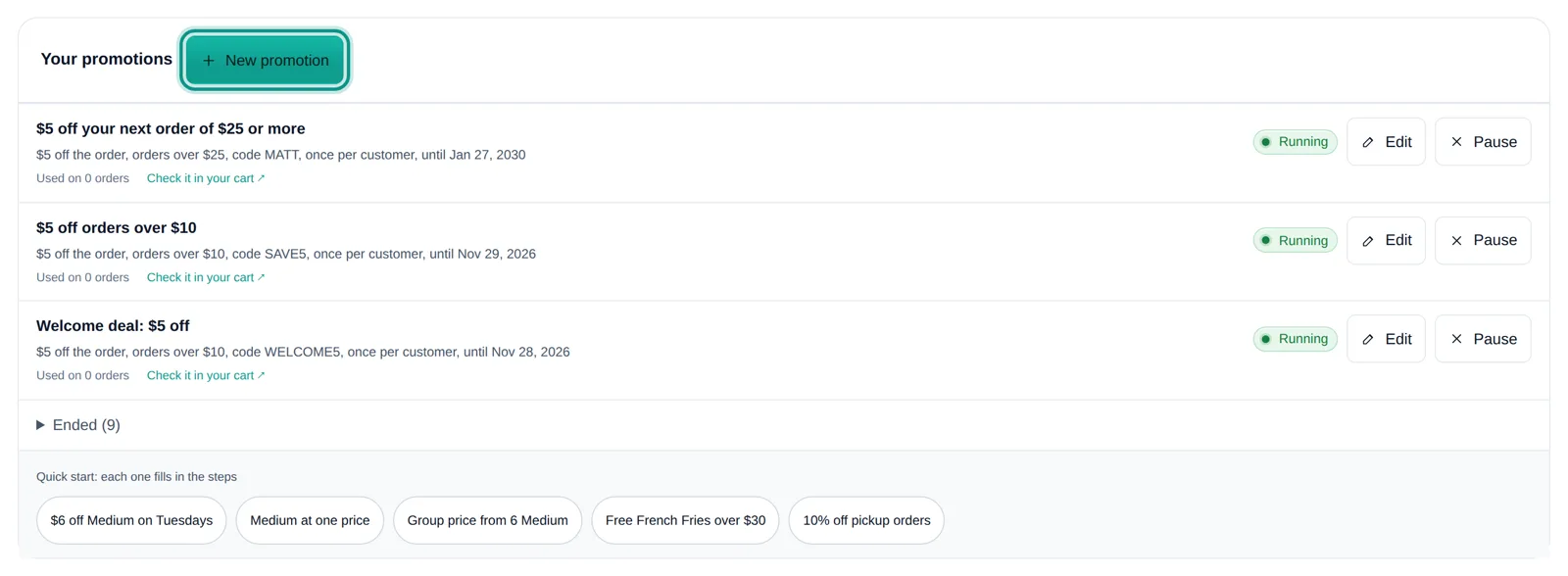
The buttons under your list fill in every step for a common deal, such as $6 off Medium on Tuesdays or Free French Fries over $30. Change anything you like before you start it.
Money off the order or some items, one set price for a size or items, a lower price each when customers buy more, or a free item once the order is big enough.
An automatic deal comes off by itself and shows a tag on the menu items it covers. A code deal applies when the customer enters the code; choose Once per customer to limit it to one use each.
Edit changes a deal. Pause stops it without deleting it, and Restart turns it back on. Deals that have finished move to Ended at the bottom of the list.
Each promotion shows how many orders used it, so you can see which deals customers actually take.
Opens your storefront so you can add items and confirm the discount appears the way you expect.
Check what it costs you on a typical order, the most one order could save, whether another running promotion covers the same orders, and when it should end. Give a limited-time deal end dates.
The builder suggests a French and an English name from your choices. Edit them so they read well. Customers see them on your menu and in the cart, and each discount prints on its own line, by name, on the kitchen ticket.
Need a deal the builder cannot make? Use Help — see Lessons 15–16. To give money back for a discount that went wrong, refund the order in Orders (Lesson 12).
Put a message on your website: a deal, a day you are closed, a delivery or pickup change, or news. The Announcements editor writes it in English and French for you, and a phone preview shows exactly what customers will see before you post it.
Where: Dashboard → Announcements.
Do this: Pick a quick start, or choose what is happening and follow the steps. Check the English and French text, choose when it shows and how it looks, then choose Post now.
Check: It appears under On your website. Turn off takes it down in one tap.
Choose Closed a day, pick the date, and keep Also close online ordering that day ticked. It adds Closed all day to your Hours for that date, and the message comes down by itself when you reopen. Untick it if you will still take orders.

What customers see
The top of the page shows what is on your website right now. Turn off takes a message down in one tap; finished messages move to Turned off or ended.
Advertise a promo code, closed for a holiday, no delivery tonight, or something else. Each one fills in every step, written in both languages.
Pick one of your codes from Promotions (Lesson 13). The message can end when the code ends, and a Use code button opens your menu with the code already applied.
Up to 48 letters a line, with an optional second line. A letter counter shows how much room is left. A blank French line shows the English.
Show it on your home and order pages or the home page only. Colours come from your own website, or pick your own.
Add an optional second button with its own label and link, for example Order on Uber Eats.
The phone preview on the right (above the steps on a phone) shows the message in English or French, on your home page or order page. What you see there is what customers see once you post.
Some changes are deliberately kept with our team — the ones that reshape your storefront or your account. You never have to wrestle with them; just tell us what you need.
New deals and complete menu builds still come through our team. You can add sections, dishes, and choices yourself, and edit the choices inside an existing deal (Lesson 9).
Your storefront name, profile, and account settings stay with our team. Your website’s colours, style, and brand images are yours on the Look page, and dish and menu-section photos are in the menu editor.
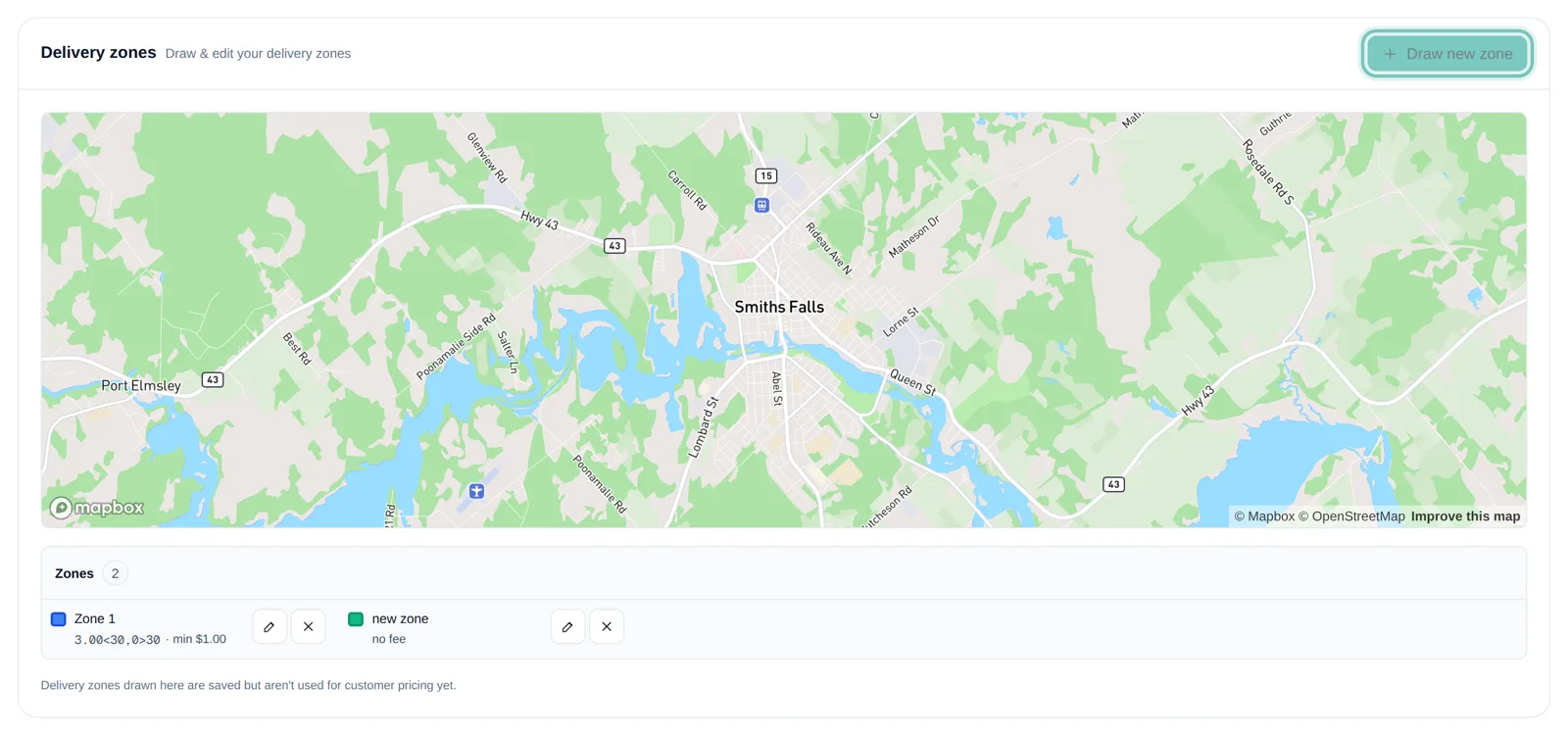
Zones drawn here are saved but aren’t used for customer pricing yet, so check checkout on your storefront after a change.
How to reach us: open Help on your dashboard and choose Send a request. Tell us what you need; we reply by email and confirm before anything changes. If you cannot sign in, email restaurants@menu.ca. If the sign-in page is unavailable, use your restaurant's existing Menu.ca support contact. Do not send passwords, sign-in links, or payment-card details.
A clear request protects the wrong order, item, restaurant, or date from being changed. Open Help on your dashboard, choose Send a request, and include identifiers rather than relying on a description alone.
Where: Dashboard → Help → Send a request. Cannot sign in? Email restaurants@menu.ca.
Do this: Choose a category and write a short subject. In the message, use the template below: the exact restaurant, order or item, requested outcome, and effective date.
Check: We reply by email, usually the same business day. Keep the team’s confirmation so you know what changed and when.
For an order: number, date, customer, amount, and requested outcome. For a menu change: exact category, dish, wording, sizes, prices, and effective date. Never include passwords, sign-in links, or payment-card details.
Restaurant, order number, order date, customer name, amount, and the requested outcome.
Restaurant, exact category and item, current wording, requested wording, prices, sizes, and effective date.
Restaurant, exact dates or recurring days, opening/closing times, delivery zone or minimum, and when it should start.
Restaurant: Your Restaurant, Your City
Request: [exact change or problem]
Order/item/category: [exact identifier]
Current value or status: [what you see now]
Requested value or outcome: [what should change]
Effective date: [date and time]
Supporting details: [photo or wording, with no payment-card data]
Please confirm before changing anything that moves money.New orders ring on your restaurant’s tablet. Its Settings screen, behind the gear icon at the bottom of the left menu, has the controls you need during service: online ordering, prep times and Busy mode, pausing pickup or delivery, the printer, auto-accept and the new-order sound.
Where: Tablet → Settings (gear icon) → Prep times.
Do this: Switch Busy mode on at the top right of the card. Need more time? Use + in the Extra when busy column for pickup or delivery.
Check: The When busy column shows the new totals. While online ordering is on, the Current prep times strip shows what customers are quoted right now.
In Settings, check that New-order sound is on, then tap a sound to hear it. Keep the tablet charged, awake and online. If it still stays silent, use Owner help.
Turn off stops online orders until you turn them back on. Close early stops them for the rest of today and turns them back on automatically tomorrow. A banner at the top of the tablet shows while ordering is off.
Under Prep times, Pause pickup or Pause delivery stops just that kind of order while the other keeps running, for example when a driver is late.
Pickup and delivery each have a regular time and their own extra minutes for a rush; the When busy column shows the total. Your extras are remembered for next time, and changing them while Busy mode is off doesn’t change what customers are told. Busy mode turns itself off at closing.
In your owner portal under Hours & availability → Prep times, below Regular and Busy, turn on Large orders. Choose when an order counts as large (a number of items from the sections you tick, or a food total), and how many extra minutes it gets for pickup, delivery, or both. It stays off until you turn it on.
When an order meets your Large orders rule, the tablet shows an orange “LARGE ORDER +N MIN” tag above the restaurant name. Once you accept it, its due time already includes the extra minutes: 30 minutes of prep plus 20 extra shows as due in 50 minutes. The printed ticket has the same LARGE ORDER line and the later ready-by time. There is nothing to switch on at the tablet.
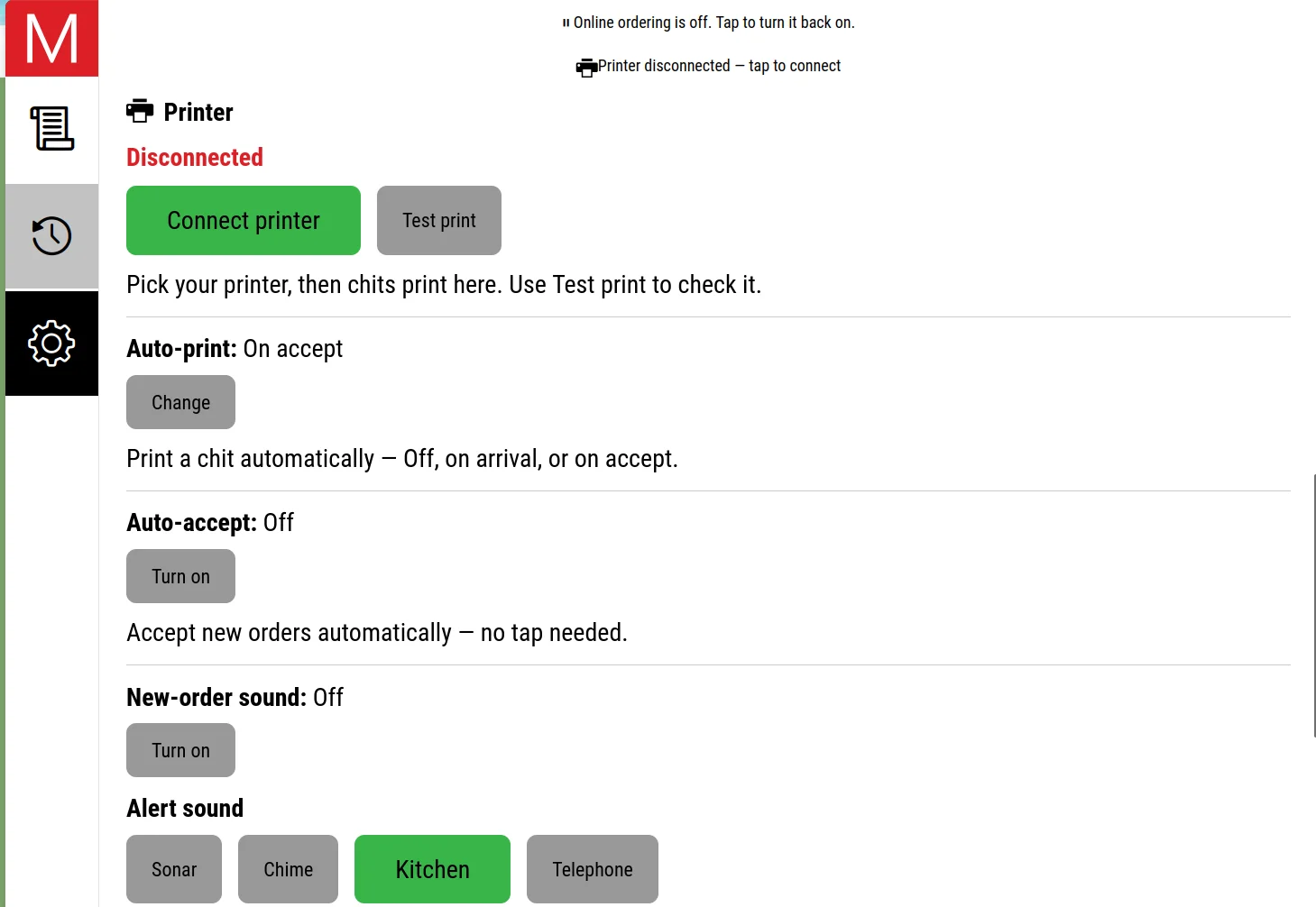
Connect your printer and use Test print to check it. Auto-print can print each chit when an order arrives or when you accept it.
When it is on, new orders are accepted automatically, so there is no chance to reject one on the tablet first. Leave it off if you want to review each order.
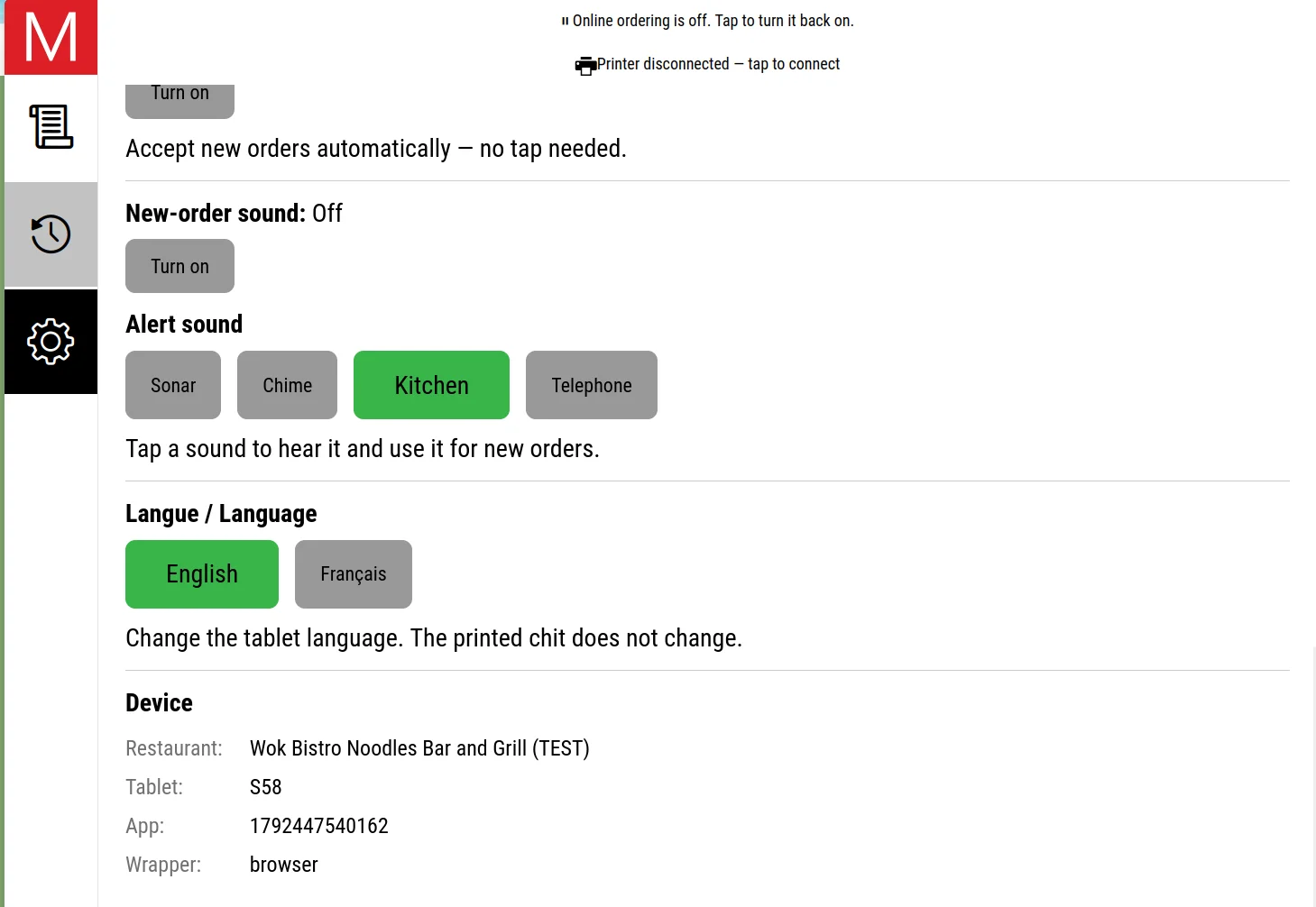
Turn the alert on or off, and tap a sound to hear it and use it for new orders. Changes take effect right away; there is no save button.
Tap the gear icon at the bottom of the tablet’s left menu. Settings starts with your printer, then Auto-print, Auto-accept and New-order sound. Scroll down for the alert sounds, the tablet’s language and the Device details.
The two lines at the very top are status messages. Tap one to fix what it says, for example to turn online ordering back on or reconnect the printer.
Langue / Language switches the tablet between English and French; the printed chit does not change. Device shows which restaurant and tablet this is, which is useful to mention when you contact us.
Each tablet keeps its own setting. Menu.ca can also change it for you remotely; ask through Help on your dashboard.
Reject or cancel an order on the tablet before you accept it. Once accepted, open it in Orders (Lesson 12) and refund it there.
The owner button in the tablet’s Settings asks for your Owner PIN, then opens your restaurant dashboard (Lesson 2).
The portal works best when it becomes part of opening, service, weekly bookkeeping, and holiday planning—not something opened only after a customer reports a problem.
Use this each shift. Ticks are a reminder in this guide, not a check of your restaurant systems. They reset when you reload the page.
0 of 5 checked
Sold out: Menu → find the dish → 86 (hide) → verify the customer menu.
Close early: Hours & availability → close for today → verify the storefront. Check existing orders separately.
Order issue: Before acceptance, reject or cancel on the tablet. After acceptance, refund it yourself in Orders.
Open Help on your dashboard and choose Send a request. Include the restaurant, exact order or item, current status, requested outcome, and date.
Full guide: guide.menuconnect.ca/start
Hours, today's exceptions, sold-out items, running promotions, tablet, printer, and internet readiness.
Update availability immediately, look up customer orders, and close today only when the restaurant cannot accept orders.
Open the payout position, read the statement, inspect unfamiliar order totals, and download or note the period you reviewed.
Review recurring hours, add dated closures, set up or pause promotions, and verify the customer storefront before the date arrives.
Keep dish and section photos current, and review approved copy in every language enabled for your restaurant.
Do not guess when money, menu structure, delivery settings, branding, or the correct restaurant/order is uncertain.
Make the change, verify the customer-facing result, and keep the details needed to reverse or explain it.
Fifteen everyday situations covering money, hours, menu accuracy, orders, offers, photos, and bilingual editing. Tap who handles each one and review the explanation.
Your progress is saved on this device. You can return anytime for a refresher.